In this project, we’ll create a Matrix Shape Editor for an 8×8 WS2812B LED matrix running on an ESP32 board. The ESP32 connects to your Wi-Fi and it serves a web page where you draw shapes and display them directly on an 8×8 matrix. In the editor, you can select a color for each pixel and the overall brightness. All your shapes are stored in the ESP32 memory and remain saved even after a reboot.
You can view the saved shapes in a gallery style widget that you can click to display instantly on the physical matrix, load into the editor to edit them, or create a slideshow to display a sequence of shapes.

You might like reading: Building an ESP32 Web Server: The Complete Guide for Beginners (Arduino IDE).
Project Overview
The following image shows the web page you’ll build for this project.

Here are the key features of this project:
- 8×8 grid shape editor web page: you can set a custom color for each pixel to draw shapes.
- Brightness control: a slider adjusts the whole shape’s brightness.
- 10 memory slots for your shapes: you can store up to 10 shapes in LittleFS as JSON (so they remain stored even after a reboot).
- Load to edit: clicking a saved shape in the gallery widget both displays it on the physical matrix and loads it back into the editor so you can modify it.
- Gallery shape previews: each saved shape’s preview shows the final shape that will be displayed.
- Instant preview: test a drawing on the physical LEDs before storing it on a slot.
- Delete shape: deleting a saved shape also clears the physical LEDs.
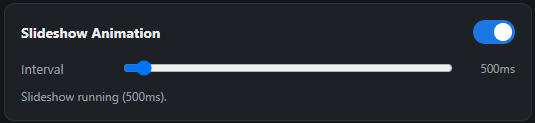
- Slideshow animation: activate a slideshow that goes through all saved shapes with an adjustable time interval.
Prerequisites
Before proceeding, make sure you have the Arduino IDE installed and the ESP32 boards. Follow the next tutorial if you haven’t already:
You might also find it helpful to read these other guides:
- ESP32: Async Web Server (ESPAsyncWebServer library)
- ESP32: WS2812B Addressable RGB LEDs (Neopixels)
- ESP32: 64 WS2812B RGB LED 8×8 Matrix (Arduino IDE)
Introducing 64 WS2812B RGB LED 8×8 Matrix Panel (Neopixels)
The WS2812B 8×8 Matrix Panel has 64 RGB LEDs (also known as neopixels) that can be controlled individually with any color and brightness using just one digital pin of your ESP32.

Powering the WS2812B LED 8×8 Matrix Panel
The LED matrix panel should be powered using a 5V power source. At 5V, each LED draws about 50mA when set to its full brightness. This means that at full brightness (in white color) for every 30 LEDs, the matrix panel may draw as much as 1.5A. Make sure you select a power source that matches your needs. An AC to DC power adapter that provides 5V and 2A should do the job:
If you use an external power source, don’t forget to connect the power source ground to the ESP32 GND pin. In this tutorial, we’ll control 64 LEDs (it’s a square matrix 8×8) using an external power source.
Parts Required
For this project, you need the following parts:
- ESP32 board – any model of your choice
- 8×8 64 LED Matrix Panel with WS2812B
- 5V 2A power adapter
- Jumper wires
You can use the preceding links or go directly to MakerAdvisor.com/tools to find all the parts for your projects at the best price!

Wiring 64 WS2812B RGB LED 8×8 Matrix to the ESP32
Wiring the WS2812B to the ESP32 is quite simple, as it only requires one digital pin (DIN) to control each LED individually.

| 8×8 Matrix | ESP32 |
| V- | GND |
| DIN | Any digital pin (for example: GPIO 2)* |
| Power Adapter | |
| GND | ESP32 GND |
| GND | 8×8 Matrix V- |
| 5V | 8×8 Matrix V+ |
* you can use any other suitable GPIOs. Check the ESP32 Pinout Guide:
- ESP32 Pinout Reference: Which GPIO pins should you use?
- ESP32-S3 DevKitC Pinout Reference Guide: GPIOs Explained
Wiring the 8×8 matrix panel to the ESP32 is very simple. We’ll share the wiring diagram below with an external power adapter, but you can also use the 5V directly from the ESP32 if you are not using white color at full brightness.
If you’re using a power adapter, connect GND to V-, and connect GPIO 2 to the DIN (data) pin. Then, wire the external power adapter 5V to the V+ and GND to V-.

Install Required Libraries in Arduino IDE
There are several libraries you need to install for this project. Follow the next instructions.
Install the FastLED library by following these steps:
- Open the Arduino IDE Library Manager
- Search for FastLED
- Install the FastLED library by Daniel Garcia

You also need the libraries to build the web server. Search for ESPAsyncWebServer and install the ESPAsyncWebServer by ESP32Async.

Then, search for AsyncTCP and install the AsyncTCP by ESP32Async.

Finally, type ArduinoJSON and install the latest ArduinoJSON 7.X version by Benoit Blanchon.

Arduino Sketch – ESP32 Matrix Shape Editor Web Server
The following code runs a web server with the matrix shape editor web page where you can create custom shapes to be displayed and run animations.
/*
  Rui Santos & Sara Santos - Random Nerd Tutorials
  Complete project details at https://RandomNerdTutorials.com/esp32-8x8-matrix-shape-editor-web-server/
  Permission is hereby granted, free of charge, to any person obtaining a copy of this software and associated documentation files.
  The above copyright notice and this permission notice shall be included in all copies or substantial portions of the Software.
*/
#include <WiFi.h>
#include <AsyncTCP.h>
#include <ESPAsyncWebServer.h>
#include <LittleFS.h>
#include <ArduinoJson.h>
#include <FastLED.h>

// REPLACE WITH YOUR NETWORK CREDENTIALS
const char* ssid = "REPLACE_WITH_YOUR_SSID";
const char* password = "REPLACE_WITH_YOUR_PASSWORD";

#define DIN_PIN       2
#define MATRIX_WIDTH  8
#define MATRIX_HEIGHT 8
#define NUM_LEDS      (MATRIX_WIDTH * MATRIX_HEIGHT)
#define BRIGHTNESS    200        // Brightness (0-255)
#define LED_TYPE      WS2812B
#define COLOR_ORDER   GRB
#define ZIGZAG        false      // Set false if your panel is wired in straight rows instead of zigzag
#define FLIP_H        true       // Set true if the image displays mirrored left to right
#define FLIP_V        true       // Set true if the image displays upside down

#define NUM_SLOTS     10         // Number of stored shape slots
#define SHAPES_DIR    "/shapes"

CRGB leds[NUM_LEDS];
AsyncWebServer server(80);

CRGB    currentPixelColors[MATRIX_HEIGHT][MATRIX_WIDTH]; // Colors per pixel for the shape currently loaded into memory
uint8_t currentBrightness = 128;
bool    haveShapeLoaded   = false;
int     currentSlot       = -1;    // Which saved slot is on screen (-1 = preview/none)

// Slideshow state
bool     slideshowActive   = false;
uint32_t slideshowInterval = 2000;   // Delay in ms between shapes
uint32_t slideshowLastTick = 0;
int      slideshowIndex    = -1;     // Last slot shown (-1 = none)
int      slideshowOrder[NUM_SLOTS];  // Slots that currently hold a shape
int      slideshowCount    = 0;

// Convert (x,y) coordinates to the corresponding index in the matrix
uint16_t coordToIndex(uint8_t x, uint8_t y) {
  if (FLIP_H) x = (MATRIX_WIDTH - 1) - x;
  if (FLIP_V) y = (MATRIX_HEIGHT - 1) - y;
  if (ZIGZAG && (y & 0x01)) {
    x = (MATRIX_WIDTH - 1) - x;
  }
  return (y * MATRIX_WIDTH) + x;
}

// Set the color of a pixel at (x,y)
void setPixel(uint8_t x, uint8_t y, CRGB color) {
  if (x >= MATRIX_WIDTH || y >= MATRIX_HEIGHT) return;
  leds[coordToIndex(x, y)] = color;
}

// Renders currentPixelColors (scaled by currentBrightness) to the physical LEDs
void renderCurrentShape() {
  FastLED.clear();
  if (haveShapeLoaded) {
    for (uint8_t y = 0; y < MATRIX_HEIGHT; y++) {
      for (uint8_t x = 0; x < MATRIX_WIDTH; x++) {
        CRGB c = currentPixelColors[y][x];
        if (c == CRGB::Black) continue;
        c.nscale8_video(currentBrightness);
        setPixel(x, y, c);
      }
    }
  }
  FastLED.show();
}

// Clears the matrix and resets the current shape state
void clearMatrix() {
  haveShapeLoaded = false;
  currentSlot = -1;
  FastLED.clear();
  FastLED.show();
}

// Converts a JSON array of {r,g,b} pixel objects into a 2D CRGB LED matrix grid
bool jsonPixelsToGrid(JsonArray pixels, CRGB out[MATRIX_HEIGHT][MATRIX_WIDTH], bool clampUntrusted) {
  if (pixels.isNull() || pixels.size() != NUM_LEDS) return false;

  int i = 0;
  for (uint8_t y = 0; y < MATRIX_HEIGHT; y++) {
    for (uint8_t x = 0; x < MATRIX_WIDTH; x++) {
      JsonObject px = pixels[i].as<JsonObject>();
      if (px.isNull()) return false;
      int r = px["r"] | 0;
      int g = px["g"] | 0;
      int b = px["b"] | 0;
      if (clampUntrusted) {
        r = constrain(r, 0, 255);
        g = constrain(g, 0, 255);
        b = constrain(b, 0, 255);
      }
      out[y][x] = CRGB(r, g, b);
      i++;
    }
  }
  return true;
}

// Returns the filesystem path for a given slot number (0-9)
bool slotPath(int slot, char* outPath, size_t outLen) {
  if (slot < 0 || slot >= NUM_SLOTS) return false;
  snprintf(outPath, outLen, "%s/%d.json", SHAPES_DIR, slot);
  return true;
}

// Checks if a given slot has a saved shape (file exists)
bool slotExists(int slot) {
  char path[32];
  if (!slotPath(slot, path, sizeof(path))) return false;
  return LittleFS.exists(path);
}

// Loads a saved shape from a slot into currentPixelColors/currentBrightness
bool loadSlotToCurrent(int slot) {
  char path[32];
  if (!slotPath(slot, path, sizeof(path))) return false;
  if (!LittleFS.exists(path)) return false;

  File f = LittleFS.open(path, "r");
  if (!f) return false;

  JsonDocument doc;
  DeserializationError err = deserializeJson(doc, f);
  f.close();
  if (err) {
    Serial.printf("loadSlotToCurrent: JSON parse failed for slot %d: %s\n", slot, err.c_str());
    return false;
  }

  if (!jsonPixelsToGrid(doc["pixels"].as<JsonArray>(), currentPixelColors, false)) {
    Serial.printf("loadSlotToCurrent: slot %d has bad pixel array\n", slot);
    return false;
  }

  currentBrightness = doc["brightness"] | 128;
  haveShapeLoaded = true;
  currentSlot = slot;
  return true;
}

// Saves a shape to a slot, validating the input first
bool saveSlot(int slot, const char* name, JsonArray pixels, uint8_t brightness) {
  char path[32];
  if (!slotPath(slot, path, sizeof(path))) return false;
  if (pixels.size() != NUM_LEDS) return false;

  for (JsonVariant v : pixels) {
    JsonObject o = v.as<JsonObject>();
    if (o.isNull() || !o["r"].is<int>() || !o["g"].is<int>() || !o["b"].is<int>()) {
      return false;
    }
  }

  JsonDocument doc;
  doc["name"] = name;
  JsonArray px = doc["pixels"].to<JsonArray>();
  for (JsonVariant v : pixels) {
    JsonObject src = v.as<JsonObject>();
    JsonObject dst = px.add<JsonObject>();
    dst["r"] = constrain(src["r"].as<int>(), 0, 255);
    dst["g"] = constrain(src["g"].as<int>(), 0, 255);
    dst["b"] = constrain(src["b"].as<int>(), 0, 255);
  }
  doc["brightness"] = brightness;

  File f = LittleFS.open(path, "w");
  if (!f) return false;
  bool ok = serializeJson(doc, f) > 0;
  f.close();
  return ok;
}

// Deletes a saved shape from a slot
bool deleteSlot(int slot) {
  char path[32];
  if (!slotPath(slot, path, sizeof(path))) return false;
  if (!LittleFS.exists(path)) return true; // already gone
  return LittleFS.remove(path);
}

// Refreshes the slideshowOrder array with the current occupied slots
void refreshSlideshowOrder() {
  slideshowCount = 0;
  for (int s = 0; s < NUM_SLOTS; s++) {
    if (slotExists(s)) {
      slideshowOrder[slideshowCount++] = s;
    }
  }
}

// Builds a JSON array describing every slot (used to populate the gallery)
String buildSlotListJson() {
  JsonDocument doc;
  JsonArray arr = doc.to<JsonArray>();

  for (int s = 0; s < NUM_SLOTS; s++) {
    JsonObject o = arr.add<JsonObject>();
    o["slot"] = s;
    char path[32];
    slotPath(s, path, sizeof(path));

    if (LittleFS.exists(path)) {
      File f = LittleFS.open(path, "r");
      JsonDocument shapeDoc;
      DeserializationError err = deserializeJson(shapeDoc, f);
      f.close();
      if (!err) {
        o["occupied"] = true;
        o["name"] = shapeDoc["name"] | "";
        o["brightness"] = shapeDoc["brightness"] | 0;
        o["pixels"] = shapeDoc["pixels"];
      } else {
        o["occupied"] = false;
      }
    } else {
      o["occupied"] = false;
    }
  }

  String out;
  serializeJson(doc, out);
  return out;
}

// Web page served for the UI to control the 8x8 matrix
const char INDEX_HTML[] PROGMEM = R"HTMLPAGE(
<!DOCTYPE html>
<html lang="en">
<head>
<meta charset="UTF-8">
<meta name="viewport" content="width=device-width, initial-scale=1">
<title>8x8 Matrix Shape Editor</title>
<style>
  :root { --bg: #14161a; --panel: #1d2025; --border: #2c3038; --accent: #1b78e2; --text: #eceef1; --text-dim: #9aa0ab; }
  * { box-sizing: border-box; }
  body { margin: 0; font-family: -apple-system, BlinkMacSystemFont, 'Segoe UI', sans-serif; background: var(--bg); color: var(--text); padding: 20px; }
  h1 { font-size: 30px; margin: 0 0 20px; }
  p.sub { color: var(--text-dim); margin: 0 0 20px; font-size: 13px; }
  .layout { display: grid; grid-template-columns: minmax(260px, 340px) 1fr; gap: 20px; max-width: 900px; }
  @media (max-width: 700px) { .layout { grid-template-columns: 1fr; } }
  .panel { background: var(--panel); border: 1px solid var(--border); border-radius: 10px; padding: 16px; }
  .panel + .panel { margin-top: 16px; }
  .grid8 { display: grid; grid-template-columns: repeat(8, 1fr); gap: 4px; aspect-ratio: 1; width: 100%; max-width: 320px; margin: 0 auto; }
  .cell { background: #2a2d33; border-radius: 3px; cursor: pointer; aspect-ratio: 1; border: 1px solid #33373f; }
  .cell.on { border-color: white; }
  .row { display: flex; align-items: center; gap: 10px; margin: 10px 0; }
  .row label { width: 90px; font-size: 13px; color: var(--text-dim); flex-shrink: 0; }
  input[type=range] { flex: 1; }
  input[type=color] { width: 42px; height: 30px; border: none; background: none; padding: 0; cursor: pointer; }
  input[type=text] { flex: 1; background: #14161a; border: 1px solid var(--border); color: var(--text); padding: 7px 9px; border-radius: 6px; font-size: 13px; }
  select { flex: 1; background: #14161a; border: 1px solid var(--border); color: var(--text); padding: 7px 9px; border-radius: 6px; font-size: 13px; }
  button { background: var(--accent); color: #1a0d12; border: none; padding: 9px 14px; border-radius: 6px; font-weight: 600; cursor: pointer; font-size: 13px; }
  button.secondary { background: #2a2d33; color: var(--text); }
  button.danger { background: #3a2229; color: #ff8fa3; }
  .btn-row { display: flex; gap: 8px; margin-top: 12px; flex-wrap: wrap; }
  .gallery { display: grid; grid-template-columns: repeat(auto-fill, minmax(90px, 1fr)); gap: 8px; }
  .slot-card { background: #14161a; border: 1px solid var(--border); border-radius: 8px; padding: 8px; text-align: center; cursor: pointer; font-size: 11px; }
  .slot-card:hover { border-color: var(--accent); }
  .slot-card .mini { display: grid; grid-template-columns: repeat(8, 1fr); gap: 1px; width: 60px; height: 60px; margin: 0 auto 6px; background: #000; border-radius: 3px; overflow: hidden; }
  .slot-card .mini div { background: #222; }
  .slot-card .label { color: var(--text-dim); }
  .slot-card.empty { opacity: 0.4; }
  .status { font-size: 12px; color: var(--text-dim); min-height: 16px; margin-top: 8px; }
  .toggle-row { display: flex; align-items: center; justify-content: space-between; }
  .switch { position: relative; width: 42px; height: 24px; }
  .switch input { opacity: 0; width: 0; height: 0; }
  .slider-toggle { position: absolute; cursor: pointer; inset: 0; background: #33373f; border-radius: 24px; transition: .2s; }
  .slider-toggle:before { content: ""; position: absolute; height: 18px; width: 18px; left: 3px; bottom: 3px; background: white; border-radius: 50%; transition: .2s; }
  input:checked + .slider-toggle { background: var(--accent); }
  input:checked + .slider-toggle:before { transform: translateX(18px); }
</style>
</head>
<body>
<h1>8x8 Matrix Shape Editor</h1>
<div class="layout">
  <div>
    <div class="panel">
      <div class="grid8" id="grid"></div>
      <div class="row">
        <label>Color</label>
        <input type="color" id="colorPicker" value="#ff0000">
      </div>
      <div class="row">
        <label>Brightness</label>
        <input type="range" id="brightness" min="0" max="255" value="128">
        <span id="brightnessVal" style="width:34px; text-align:right; font-size:12px; color:var(--text-dim);">128</span>
      </div>
      <div class="row">
        <label>Shape Name</label>
        <input type="text" id="shapeName" placeholder="e.g. Heart" maxlength="20">
      </div>
      <div class="row">
        <label>Slot</label>
        <select id="slotSelect"></select>
      </div>
      <div class="btn-row">
        <button id="btnPreview" class="secondary">Preview on Matrix</button>
        <button id="btnSave">Save to Slot</button>
        <button id="btnClearGrid" class="secondary">Clear Grid</button>
        <button id="btnTurnOff" class="danger">Turn Off Matrix</button>
      </div>
      <div class="status" id="drawStatus"></div>
    </div>
  </div>
  <div>
    <div class="panel">
      <div class="toggle-row">
        <strong style="font-size:14px;">Saved Shapes</strong>
      </div>
      <div class="gallery" id="gallery" style="margin-top:12px;"></div>
    </div>
    <div class="panel">
      <div class="toggle-row">
        <strong style="font-size:14px;">Slideshow Animation</strong>
        <label class="switch">
          <input type="checkbox" id="slideshowToggle">
          <span class="slider-toggle"></span>
        </label>
      </div>
      <div class="row" style="margin-top:14px;">
        <label>Interval</label>
        <input type="range" id="slideshowInterval" min="100" max="10000" step="100" value="1000">
        <span id="slideshowIntervalVal" style="width:50px; text-align:right; font-size:12px; color:var(--text-dim);">2000ms</span>
      </div>
      <div class="status" id="slideshowStatus"></div>
    </div>
  </div>
</div>

<script>
const W = 8, H = 8;
let pixelColors = new Array(W * H).fill(null);
let slots = [];
let loadedFromSlot = null;

const gridEl = document.getElementById('grid');
function buildGrid() {
  gridEl.innerHTML = '';
  for (let i = 0; i < W * H; i++) {
    const cell = document.createElement('div');
    cell.className = 'cell';
    cell.dataset.index = i;
    cell.addEventListener('click', () => {
      if (pixelColors[i]) {
        pixelColors[i] = null;
      } else {
        pixelColors[i] = hexToRgb(document.getElementById('colorPicker').value);
      }
      paintCell(cell, pixelColors[i]);
    });
    gridEl.appendChild(cell);
  }
}

function paintCell(cellEl, color) {
  if (color) {
    cellEl.classList.add('on');
    cellEl.style.background = rgbToHex(color.r, color.g, color.b);
  } else {
    cellEl.classList.remove('on');
    cellEl.style.background = '';
  }
}
function renderGridFromPixels() {
  const cells = gridEl.children;
  for (let i = 0; i < pixelColors.length; i++) {
    paintCell(cells[i], pixelColors[i]);
  }
}
buildGrid();

document.getElementById('btnClearGrid').addEventListener('click', () => {
  pixelColors = new Array(W * H).fill(null);
  renderGridFromPixels();
  loadedFromSlot = null;
});

const brightnessInput = document.getElementById('brightness');
const brightnessVal = document.getElementById('brightnessVal');
brightnessInput.addEventListener('input', () => {
  brightnessVal.textContent = brightnessInput.value;
});

const slotSelect = document.getElementById('slotSelect');
function populateSlotSelect() {
  slotSelect.innerHTML = '';
  for (let s = 0; s < 10; s++) {
    const opt = document.createElement('option');
    opt.value = s;
    const meta = slots.find(x => x.slot === s);
    opt.textContent = 'Slot ' + s + (meta && meta.occupied ? ' ' + (meta.name || 'unnamed') : ' (empty)');
    slotSelect.appendChild(opt);
  }
}

function findFirstEmptySlot() {
  for (let s = 0; s < 10; s++) {
    const meta = slots.find(x => x.slot === s);
    if (!meta || !meta.occupied) return s;
  }
  return null;
}

function loadShapeIntoEditor(slotData) {
  pixelColors = slotData.pixels.map(p => (p.r === 0 && p.g === 0 && p.b === 0) ? null : { r: p.r, g: p.g, b: p.b });
  renderGridFromPixels();

  document.getElementById('shapeName').value = slotData.name || '';
  brightnessInput.value = slotData.brightness;
  brightnessVal.textContent = slotData.brightness;

  loadedFromSlot = slotData.slot;
  const emptySlot = findFirstEmptySlot();
  slotSelect.value = (emptySlot !== null) ? emptySlot : slotData.slot;

  setStatus('drawStatus', 'Loaded "' + (slotData.name || ('Slot ' + slotData.slot)) + '" into the editor.');
}

async function apiGet(path) {
  const res = await fetch(path);
  if (!res.ok) throw new Error('Request failed: ' + path);
  return res.json();
}
async function apiPost(path, body) {
  const res = await fetch(path, {
    method: 'POST',
    headers: { 'Content-Type': 'application/json' },
    body: JSON.stringify(body)
  });
  if (!res.ok) throw new Error('Request failed: ' + path);
  return res.json();
}

function hexToRgb(hex) {
  const v = parseInt(hex.slice(1), 16);
  return { r: (v >> 16) & 255, g: (v >> 8) & 255, b: v & 255 };
}
function rgbToHex(r, g, b) {
  return '#' + [r, g, b].map(x => x.toString(16).padStart(2, '0')).join('');
}

function pixelsForWire() {
  return pixelColors.map(c => c ? c : { r: 0, g: 0, b: 0 });
}

document.getElementById('btnPreview').addEventListener('click', async () => {
  const brightness = parseInt(brightnessInput.value, 10);
  setStatus('drawStatus', 'Sending preview...');
  try {
    await apiPost('/api/preview', { pixels: pixelsForWire(), brightness });
    document.getElementById('slideshowToggle').checked = false;
    setStatus('drawStatus', 'Preview sent.');
  } catch (e) {
    setStatus('drawStatus', 'Error sending preview.');
  }
});

document.getElementById('btnSave').addEventListener('click', async () => {
  const brightness = parseInt(brightnessInput.value, 10);
  const name = document.getElementById('shapeName').value || 'Shape';
  const slot = parseInt(slotSelect.value, 10);
  setStatus('drawStatus', 'Saving...');
  try {
    const result = await apiPost('/api/shape/save', { slot, name, pixels: pixelsForWire(), brightness });
    if (result.ok) {
      setStatus('drawStatus', 'Saved to slot ' + slot + '.');
      loadedFromSlot = slot;
      await apiPost('/api/preview', { pixels: pixelsForWire(), brightness });
      document.getElementById('slideshowToggle').checked = false;
      await loadGallery();
    } else {
      setStatus('drawStatus', 'Save failed: ' + (result.error || 'unknown error'));
    }
  } catch (e) {
    setStatus('drawStatus', 'Error saving shape.');
  }
});

document.getElementById('btnTurnOff').addEventListener('click', async () => {
  await apiPost('/api/clear', {});
  setStatus('slideshowStatus', 'Slideshow animation turned off.');
  setStatus('drawStatus', 'Matrix turned off.');
  document.getElementById('slideshowToggle').checked = false;
});

const galleryEl = document.getElementById('gallery');
async function loadGallery() {
  slots = await apiGet('/api/shape/list');
  populateSlotSelect();
  galleryEl.innerHTML = '';
  slots.forEach(s => {
    const card = document.createElement('div');
    card.className = 'slot-card' + (s.occupied ? '' : ' empty');

    const mini = document.createElement('div');
    mini.className = 'mini';
    for (let i = 0; i < 64; i++) {
      const px = document.createElement('div');
      if (s.occupied && s.pixels && s.pixels[i]) {
        const p = s.pixels[i];
        if (!(p.r === 0 && p.g === 0 && p.b === 0)) {
          px.style.background = rgbToHex(p.r, p.g, p.b);
        }
      }
      mini.appendChild(px);
    }

    const label = document.createElement('div');
    label.className = 'label';
    label.textContent = s.occupied ? (s.name || ('Slot ' + s.slot)) : ('Slot ' + s.slot + ' (empty)');

    card.appendChild(mini);
    card.appendChild(label);

    if (s.occupied) {
      card.style.position = 'relative';

      const delBtn = document.createElement('div');
      delBtn.textContent = '✕';
      delBtn.title = 'Delete this shape';
      delBtn.style.cssText = 'position:absolute; top:2px; right:4px; color:#ff8fa3; font-size:11px; cursor:pointer; padding:2px 4px;';
      delBtn.addEventListener('click', async (e) => {
        e.stopPropagation();
        await apiPost('/api/shape/delete', { slot: s.slot });
        setStatus('drawStatus', 'Deleted slot ' + s.slot + '.');
        await loadGallery();
      });
      card.appendChild(delBtn);

      card.title = 'Click to display on the matrix and load into the editor';
      card.addEventListener('click', async () => {
        await apiPost('/api/shape/display', { slot: s.slot });
        document.getElementById('slideshowToggle').checked = false;
        loadShapeIntoEditor(s);
      });
    }
    galleryEl.appendChild(card);
  });
}

const slideshowToggle = document.getElementById('slideshowToggle');
const slideshowIntervalInput = document.getElementById('slideshowInterval');
const slideshowIntervalVal = document.getElementById('slideshowIntervalVal');

slideshowIntervalInput.addEventListener('input', () => {
  slideshowIntervalVal.textContent = slideshowIntervalInput.value + 'ms';
});

async function pushSlideshowState() {
  const active = slideshowToggle.checked;
  const interval = parseInt(slideshowIntervalInput.value, 10);
  try {
    await apiPost('/api/slideshow', { active, interval });
    setStatus('slideshowStatus', active ? 'Slideshow running (' + interval + 'ms).' : 'Slideshow stopped.');
  } catch (e) {
    setStatus('slideshowStatus', 'Error updating slideshow.');
  }
}
slideshowToggle.addEventListener('change', pushSlideshowState);
slideshowIntervalInput.addEventListener('change', pushSlideshowState);

function setStatus(elId, msg) {
  document.getElementById(elId).textContent = msg;
}

loadGallery();
</script>
</body>
</html>
)HTMLPAGE";

// Applies a JSON payload containing "pixels" and "brightness" to the current shape in memory
bool applyPixelPayload(JsonVariant& doc) {
  CRGB tmp[MATRIX_HEIGHT][MATRIX_WIDTH];
  if (!jsonPixelsToGrid(doc["pixels"].as<JsonArray>(), tmp, true)) return false;

  ::memcpy(currentPixelColors, tmp, sizeof(tmp));

  currentBrightness = doc["brightness"] | 128;
  haveShapeLoaded = true;
  currentSlot = -1;
  return true;
}

// Sends JSON response: {"ok":true}
void sendOk(AsyncWebServerRequest* request) {
  request->send(200, "application/json", "{\"ok\":true}");
}

// Sends JSON response: {"ok":false,"error":"..."}
void sendError(AsyncWebServerRequest* request, const char* msg) {
  JsonDocument resp;
  resp["ok"] = false;
  resp["error"] = msg;
  String out;
  serializeJson(resp, out);
  request->send(200, "application/json", out);
}

// Parses a JSON body containing "slot" and validates it is in the range 0-9
bool parseSlot(JsonObject doc, int& outSlot) {
  int slot = doc["slot"] | -1;
  if (slot < 0 || slot >= NUM_SLOTS) return false;
  outSlot = slot;
  return true;
}

// Sets up all the web server routes for the UI and API
void setupWebServerRoutes() {
  // Serve the UI web page
  server.on("/", HTTP_GET, [](AsyncWebServerRequest *request) {
    request->send_P(200, "text/html", INDEX_HTML);
  });

  // GET /api/shape/list -> JSON array describing all 10 shape slots
  server.on("/api/shape/list", HTTP_GET, [](AsyncWebServerRequest *request) {
    request->send(200, "application/json", buildSlotListJson());
  });

  // POST /api/shape/save { slot, name, pixels[64], brightness } -> saves the shape to that slot
  AsyncCallbackJsonWebHandler* saveHandler = new AsyncCallbackJsonWebHandler(
    "/api/shape/save",
    [](AsyncWebServerRequest *request, JsonVariant &json) {
      JsonObject doc = json.as<JsonObject>();

      int slot;
      const char* name = doc["name"] | "Shape";
      JsonArray pixels = doc["pixels"].as<JsonArray>();
      uint8_t brightness = doc["brightness"] | 128;

      if (!parseSlot(doc, slot)) {
        sendError(request, "invalid slot");
      } else if (pixels.isNull() || pixels.size() != NUM_LEDS) {
        sendError(request, "invalid pixel data");
      } else if (!saveSlot(slot, name, pixels, brightness)) {
        sendError(request, "write failed");
      } else {
        refreshSlideshowOrder();
        sendOk(request);
      }
    }
  );
  server.addHandler(saveHandler);

  // POST /api/shape/display { slot } -> displays the shape from that slot
  AsyncCallbackJsonWebHandler* displayHandler = new AsyncCallbackJsonWebHandler(
    "/api/shape/display",
    [](AsyncWebServerRequest *request, JsonVariant &json) {
      JsonObject doc = json.as<JsonObject>();
      int slot;

      slideshowActive = false;

      if (!parseSlot(doc, slot) || !loadSlotToCurrent(slot)) {
        sendError(request, "slot empty or invalid");
        return;
      }
      renderCurrentShape();
      sendOk(request);
    }
  );
  server.addHandler(displayHandler);

  // POST /api/shape/delete { slot } -> deletes the shape from that slot
  AsyncCallbackJsonWebHandler* deleteHandler = new AsyncCallbackJsonWebHandler(
    "/api/shape/delete",
    [](AsyncWebServerRequest *request, JsonVariant &json) {
      JsonObject doc = json.as<JsonObject>();
      int slot;

      if (!parseSlot(doc, slot)) {
        sendError(request, "invalid slot");
        return;
      }

      bool ok = deleteSlot(slot);
      refreshSlideshowOrder();

      if (slot == currentSlot) {
        clearMatrix();
      }

      if (ok) sendOk(request);
      else sendError(request, "delete failed");
    }
  );
  server.addHandler(deleteHandler);

  // POST /api/preview { pixels[64] (each {r,g,b}), brightness } -> preview the shape
  AsyncCallbackJsonWebHandler* previewHandler = new AsyncCallbackJsonWebHandler(
    "/api/preview",
    [](AsyncWebServerRequest *request, JsonVariant &json) {
      slideshowActive = false;
      if (applyPixelPayload(json)) {
        renderCurrentShape();
        sendOk(request);
      } else {
        sendError(request, "invalid pixel data");
      }
    }
  );
  server.addHandler(previewHandler);

  // POST /api/clear {} -> turns the matrix off
  server.on("/api/clear", HTTP_POST, [](AsyncWebServerRequest *request) {
    slideshowActive = false;
    clearMatrix();
    sendOk(request);
  });

  // POST /api/slideshow { active: bool, interval: ms } -> starts/stops the slideshow animation and sets the interval
  AsyncCallbackJsonWebHandler* slideshowHandler = new AsyncCallbackJsonWebHandler(
    "/api/slideshow",
    [](AsyncWebServerRequest *request, JsonVariant &json) {
      JsonObject doc = json.as<JsonObject>();
      bool active = doc["active"] | false;
      uint32_t interval = doc["interval"] | 2000;
      if (interval < 250) interval = 250;

      refreshSlideshowOrder();

      slideshowInterval = interval;
      slideshowActive = active && (slideshowCount > 0);
      slideshowLastTick = millis();

      JsonDocument resp;
      resp["ok"] = true;
      resp["active"] = slideshowActive;
      resp["count"] = slideshowCount;
      String out;
      serializeJson(resp, out);
      request->send(200, "application/json", out);
    }
  );
  server.addHandler(slideshowHandler);

  server.onNotFound([](AsyncWebServerRequest *request) {
    request->send(404, "text/plain", "Not found");
  });
}

// Updates the slideshow animation if it's active and enough time has passed since the last frame
void updateSlideshow() {
  if (!slideshowActive || slideshowCount == 0) return;

  uint32_t now = millis();
  if (now - slideshowLastTick < slideshowInterval) return;
  slideshowLastTick = now;

  slideshowIndex = (slideshowIndex + 1) % slideshowCount;
  int slot = slideshowOrder[slideshowIndex];

  if (loadSlotToCurrent(slot)) {
    renderCurrentShape();
  }
}

void setup() {
  Serial.begin(115200);

  // Initialize LittleFS and create the shapes directory if it doesn't exist
  if (!LittleFS.begin(true)) {
    Serial.println("LittleFS mount failed even after format attempt.");
  }
  if (!LittleFS.exists(SHAPES_DIR)) {
    LittleFS.mkdir(SHAPES_DIR);
  }
  refreshSlideshowOrder();

  // Initialize FastLED
  FastLED.addLeds<LED_TYPE, DIN_PIN, COLOR_ORDER>(leds, NUM_LEDS);
  FastLED.setBrightness(BRIGHTNESS);
  FastLED.clear();
  FastLED.show();

  // Start the Wi-Fi connection
  WiFi.begin(ssid, password);
  Serial.print("Connecting to Wi-Fi");
  while (WiFi.status() != WL_CONNECTED) {
    delay(500);
    Serial.print(".");
  }
  Serial.println("\nWi-Fi Connected!");
  // Print the ESP32 IP Address
  Serial.print("Access ESP32 IP Address: http://");
  Serial.println(WiFi.localIP());

  // Set up routes requests and start the web server
  setupWebServerRoutes();
  server.begin();
  Serial.println("ESP32 Web Server started!");
}

void loop() {
  // Handle the slideshow animation when it's active
  updateSlideshow();
}
With the libraries mentioned previously installed in your Arduino IDE, you just need to insert your network credentials in the following lines in the code, and it will work straight away.
const char* ssid = "REPLACE_WITH_YOUR_SSID";
const char* password = "REPLACE_WITH_YOUR_SSID";
How the Code Works
Continue reading to learn how the code works, or skip to the Demonstration section.
Include the required libraries
To control an 8×8 WS2812B LED matrix (64 LEDs), the ESP32 uses the FastLED library (read our getting started guide ESP32: 64 WS2812B RGB LED 8×8 Matrix). It also uses Wi-Fi for network access, the ESPAsyncWebServer library for an asynchronous web server, LittleFS to access the ESP file storage, and ArduinoJson for parsing and serializing shape data.
#include <WiFi.h>
#include <AsyncTCP.h>
#include <ESPAsyncWebServer.h>
#include <LittleFS.h>
#include <ArduinoJson.h>
#include <FastLED.h>
Global variables
We need to define a few global variables to configure the matrix.
The matrix panel data in pin (DIN_PIN) is connected to the ESP32 GPIO 2.
#define DIN_PIN 2Define the LED type WS2812B and set the Color Order to GRB. Most WS2812B LEDs use GRB order, not RGB.
#define LED_TYPE             WS2812B
#define COLOR_ORDER   GRB
The ZIGZAG variable is used in the coordToIndex() function to assign the correct LED position depending on whether the LEDs are wired in a zigzag or if all the matrix rows are wired in the same direction.
#define ZIGZAG trueIf you want to mirror the shape horizontally or vertically, you can set these variables to true or false.
#define FLIP_H  false  // Set true if the image displays mirrored left to right
#define FLIP_V  false  // Set true if the image displays upside down
Coordinate mapping
The coordToIndex(x, y) function converts grid coordinates into the corresponding LED index. Using the variables defined in the previous section, the function can also flip the image horizontally or vertically and reverse every other row when the matrix panel is wired in a zigzag pattern. This ensures the visual layout matches the physical wiring.
uint16_t coordToIndex(uint8_t x, uint8_t y) {
  if (FLIP_H) x = (MATRIX_WIDTH - 1) - x;
  if (FLIP_V) y = (MATRIX_HEIGHT - 1) - y;
  if (ZIGZAG && (y & 0x01)) {
    x = (MATRIX_WIDTH - 1) - x;
  }
  return (y * MATRIX_WIDTH) + x;
}
Display shape
The renderCurrentShape() function is responsible for actually displaying the current selected shape on the physical LED matrix. It maintains a 2D color array (currentPixelColors), a brightness value (0 to 255), and a flag indicating whether a shape is loaded. This function clears the LEDs, applies brightness, writes the colors via setPixel(), and then calls FastLED.show() to display the shape on the physical matrix.
void renderCurrentShape() {
  FastLED.clear();
  if (haveShapeLoaded) {
    for (uint8_t y = 0; y < MATRIX_HEIGHT; y++) {
      for (uint8_t x = 0; x < MATRIX_WIDTH; x++) {
        CRGB c = currentPixelColors[y][x];
        if (c == CRGB::Black) continue;
        c.nscale8_video(currentBrightness);
        setPixel(x, y, c);
      }
    }
  }
  FastLED.show();
}
Shape storage
It stores up to 10 shapes as individual JSON files (/shapes/0.json (…) /shapes/9.json) on LittleFS. Each file stores a name, brightness, and a flat array of 64 {r,g,b} objects. It has a few helper functions to handle the file path, check if a file exists, load a shape into the current buffer, delete shape, and more.
Matrix Shape Editor (web page)
A web page with HTML, CSS, and JavaScript stored in PROGMEM is served at the root / URL. It loads an 8×8 grid for drawing, a color picker, brightness slider, name field, slot selector, a gallery of saved shapes with previews, and slideshow controls.
API endpoints
- GET / – returns the matrix shape editor web page
- GET /api/shape/list – returns a JSON array describing every slot (occupied flag, name, brightness, pixel data)
- POST /api/shape/save – validates slot number and pixel array, then writes the shape to LittleFS and refreshes the slideshow list
- POST /api/shape/display – loads a saved slot into memory and renders it (also stops any running slideshow)
- POST /api/shape/delete – deletes the file and if that slot is currently displayed, the matrix is cleared
- POST /api/preview – applies a temporary shape and brightness without saving it
- POST /api/clear – turns the matrix off and if the slideshow is running, it also stops it
- POST /api/slideshow – starts/stops cycling through the shape sequence and sets the interval (minimum 100ms)
setup()
In the setup(), it initializes the Serial Monitor, mounts LittleFS (formats if necessary and creates the /shapes directory), initializes the FastLED strip, connects to the configured Wi-Fi network, and prints the ESP32 IP address.
void setup() {
  Serial.begin(115200);

  // Initialize LittleFS and create the shapes directory if it doesn't exist
  if (!LittleFS.begin(true)) {
    Serial.println("LittleFS mount failed even after format attempt.");
  }
  if (!LittleFS.exists(SHAPES_DIR)) {
    LittleFS.mkdir(SHAPES_DIR);
  }
  refreshSlideshowOrder();

  // Initialize FastLED
  FastLED.addLeds<LED_TYPE, DIN_PIN, COLOR_ORDER>(leds, NUM_LEDS);
  FastLED.setBrightness(BRIGHTNESS);
  FastLED.clear();
  FastLED.show();

  // Start the Wi-Fi connection
  WiFi.begin(ssid, password);
  Serial.print("Connecting to Wi-Fi");
  while (WiFi.status() != WL_CONNECTED) {
    delay(500);
    Serial.print(".");
  }
  Serial.println("\nWi-Fi Connected!");
  // Print the ESP32 IP Address
  Serial.print("Access ESP32 IP Address: http://");
  Serial.println(WiFi.localIP());

(...)
Finally, it creates all web routes mentioned in the previous section, and starts the asynchronous web server.
setupWebServerRoutes();
server.begin();
Slideshow animation
When active, the updateSlideshow() function is called on every loop(), then it checks whether the configured interval has passed. It then goes through the list of all occupied slots, loads the next shape, and displays it on the physical matrix. The list of occupied shape slots is automatically updated whenever shapes are saved or deleted.
void loop() {
  updateSlideshow();
}
Demonstration
After inserting your network credentials, upload the code to the ESP32 board. Open the Serial Monitor at a baud rate of 115200 and press the ESP32 RST button.

The ESP32 IP address will be printed in the Serial Monitor.

Open any browser on your local network and enter your ESP32 IP address. A similar web page should load.

The matrix shape editor UI has three main sections: grid editor, gallery with saved shapes, and the slideshow animation.
In the 8×8 grid shape editor web page, you can set a custom color, then select each pixel on the grid to draw custom shapes. You also have a brightness control slider that adjusts the whole shape’s brightness.
You can set the shape name and slot position to save your shapes on the ESP32 in LittleFS as JSON (so they remain stored even after a reboot). You can use the buttons to preview the current drawing in the matrix, clear the web page grid, or turn off the physical matrix.

In the other section, you have a gallery with the preview of all saved shapes. When you click on a saved shape, it both displays it on the physical matrix and loads it back into the editor so you can modify it. You can also use the red cross in the top right corner to delete any saved shape.

Finally, you have the slideshow animation section where you can toggle the blue button to run a slideshow that goes through all saved shapes with an adjustable time interval in milliseconds (ms).
Below you can see how some of the shapes look like when displayed on the matrix.

You can watch the next short video that is a live demonstration of this project showing all its features.
Wrapping Up
In this project, we created a web server that allows you to draw custom shapes and create animations using a WS2812B RGB LED 8×8 matrix panel with the FastLED library. We have more tutorials about RGB LEDs that you may like:
- Arduino IDE: WS2812B Addressable RGB LEDs (Neopixels) with ESP32
- MicroPython: WS2812B Addressable RGB LEDs with ESP32 and ESP8266
- ESP32: 64 WS2812B RGB LED 8×8 Matrix (Arduino IDE)
Learn more about the ESP32 with our resources:
- Build Web Servers with ESP32 and ESP8266 (eBook)
- Learn ESP32 with Arduino IDE (eBook)
- All our ESP32 Projects and Guides
We hope you enjoyed this project and learned something new.
Thanks for reading.


Hallo ein super Projekt. Leider kann ich keine gespeicherten Shapes sehen. Müssen diese extra geladen werden?
Gruß
Grauer Wolf
Hi.
The saved shapes in the example were created by us using the editor.
You have to create and save your own shapes in the editor.
Regards,
Sara
Neat, it works nicely! I had to set one of the two ‘large APP’ options in the Tools menu of the IDE to get the compiled sketch to load onto a ESP32 D1 Mini. I couldn’t manage to get it to compile using pioarduino however as there were various errors reported with AsyncTCP.
Hi.
That’s great!
Which error did you get with AsyncTCP? you need to make sure you’re using the same versions as we are: the AsyncTCP by ESP32Async.
Regards,
Sara
Yes, I am using that version of AsyncTCP. It was a corrupt cache problem with pioarduino. After deleting the project’s .pio and the .platformio/packages and .platformio/platforms folders to clear the caches I set board_build.partitions = huge_app.csv in platformio.ini and the sketch built and flashed fine.
Great!
Wait a minute. Don’t you need to use a level translator since the ESP32 GPIOs are 3.3V logic outputs whereas the 8X8 WS2812B DIN is 5V logic? I am using two 8X32 WS2812B matrices and was getting unreliable displays before I implemented a level translator
Hi.
In theory, yes.
But, in our case, with a WS2812B matrix powered at 5V, an ESP32 3.3 V data signal often works anyway.
However, I think it depends on the actual display you have.
We didn’t use one, and we didn’t have any issues displaying the shapes.
Maybe on same variants of the matrix, it doesnt work that well. If that’s the case, a level shifter is recommended.
We didn’t need one even on WS2812B LED strips.
Regards,
Sara
Nice! Those classic icons from the ’80er have a second life. Is there a possibility either to add more slots in the esp32 or to save/load shapes from external source?
Thanks!
Hi.
It’s easy to add more slots.
Add the number of slots in the NUM_SLOTS variable.
Adjust accordingly in the findFirstEmptySlot and populateSlotSelect functions.
It doens’t have that functionality to load shapes from external source.
Regards,
Sara
Hello Sara and Rui,
I just can’t get the right LittleFS.h library.
Where can I download that?
Every file I install gives the same error
=====
WS2812B_LED_8X8_Matrix:10:22: fatal error: LittleFS.h: No such file or directory
compilation terminated.
exit status 1
LittleFS.h: No such file or directory
Thanks for help,
Ruud.
Hi.
You don’t need to install any LittleFS library. It is included in the Arduino ESP32 core by default.
Just make sure you select an ESP32 board in Tools > Boards before compiling.
Regards,
Sara
Hi Sara,
Thanks for information!
I am still looking for a way, how to find out if a command is internal or not.
But for some reason the file suddenly compiles OK, and the project works.
Very nice for the kids.
P.S. Is there a way to build up a sort of library, to save the pictures you create?
Best regards,
Ruud.
Great!
I’m glad it is working now.
The project saves up to 10 shapes in the ESP32 LittleFS filesystem.
You can save more by changing the number of slots in the NUM_SLOTS variable.
Adjust accordingly in the findFirstEmptySlot and populateSlotSelect functions.
Regards,
Sara
Hi Sara and Rui,
Works fine right now, but I still have a question.
Is there any way to save the shapes on the computer, so you’ll be able to upload them in the ESP32?
Thanks again for the nice project.
Best regards,
Ruud
Hi.
No. The project doesn’t have that feature.
But, you can access the web server on this path: /api/shape/list
You’ll see the JSON file with the shapes list.
You can save it to your computer as a json file.
Later, if you want to upload it to the ESP32. You can use the same method used to upload files to LittleFS using the LittleFS filesystem uploader tool. https://randomnerdtutorials.com/esp32-littlefs-arduino-ide/
I hope this helps.
Regards,
Sara
Does this project require any Visual Studio code mods?
Hi.
What do you mean?
Regards,
Sara
FastLED 3.10.X is not compatible with VSC, used fastled/[email protected]
Also found VSC requires bblanchon/ArduinoJson@^7.4.2 to compile
Thanks for pointing that out.
Regards,
Sara